Coloring on iPad: make room for a little color
Find a comfortable Apple Pencil setup, prepare a coloring page in Procreate and explore the pleasure of building color on a screen.
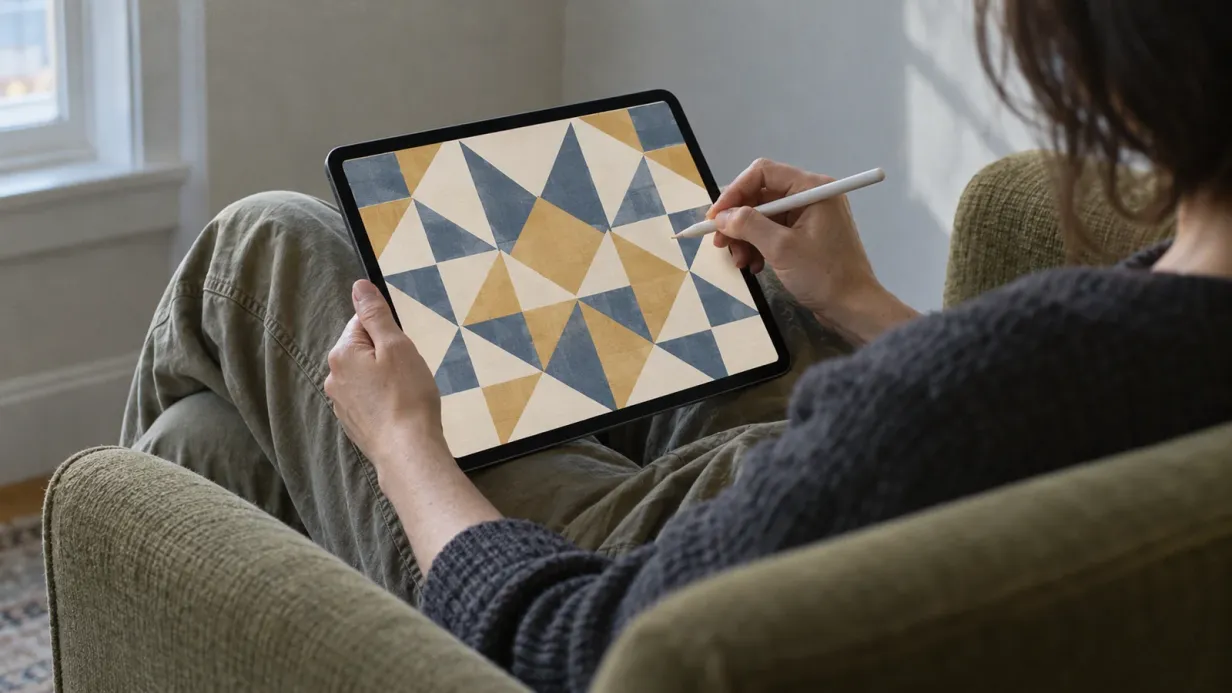
An iPad makes it easy to try a color you’re unsure about. Lay down a little blue, change it to green, then bring the blue back. The page can hold a few experiments before you decide where to go.
A coloring app gives you a drawing ready to use. A painting app such as Procreate lets you arrange the page yourself. Choose the setup that feels comfortable for the time you have.
Begin with the Pencil you have
Check Apple’s compatibility guide to see which Pencil works with your iPad.
The Apple Pencil models offer different features. The first and second generations support pressure and tilt. Apple Pencil Pro adds controls including squeeze and barrel roll. The USB-C model supports tilt but doesn’t have pressure sensitivity.
Pressure response is useful for making a pencil stroke lighter as you ease your hand. If your Pencil doesn’t support it, you can still color by adjusting brush opacity or size. You don’t need every control to enjoy the page.
Find a comfortable feel
Rest the iPad at an angle that lets your wrist relax. Try a few strokes before beginning, especially if you’re used to the resistance of paper.
Some people prefer a matte screen protector for added friction. Others enjoy the smooth glass. Try the surface you have before adding anything.
Zoom in for little details and return to the whole page occasionally. It helps to see how a patch of color sits beside the rest of the picture.
Let a coloring app handle the outlines
Look for an app that lets you choose your own colors and use the kind of marks you enjoy. Tap-to-fill can make a broad background quickly; a brush gives you more room to build texture or a soft edge.
In Linea, color stays within the outlines, so you can make loose watercolor strokes without carefully tracing every edge. On a compatible iPad and Apple Pencil, supported controls include pressure and tilt.
If you’d like to compare approaches, see coloring apps without numbers.
Prepare a page in Procreate
If you already use Procreate, you can bring a coloring page into your usual workspace. Its handbook covers importing images and PDFs.
- Import your file. In the Gallery, tap Import and choose it from Files. A multi-page PDF imports with pages on separate layers; choose the page you want to color.
- Keep the lines above the paint. Add a new layer beneath the line art and select it for coloring.
- Check the background. If an imported image has opaque white around the lines, set its layer’s blend mode to Multiply so color beneath it shows through.
- Set the line art as Reference. Open that layer’s options and choose Reference. ColorDrop can then use those outlines while placing fills on your selected color layer.
Procreate’s layer options guide explains Reference and the other layer controls.
If a fill spreads beyond a shape, undo it and check the outline for a gap. You may need to close the gap or adjust the fill threshold. Brush coloring is an option when a shape is intentionally open.
Build color with a few gentle strokes
Choose a brush and test its lightest mark. If it feels too heavy, reduce its opacity or adjust the pressure response until your hand can stay comfortable.
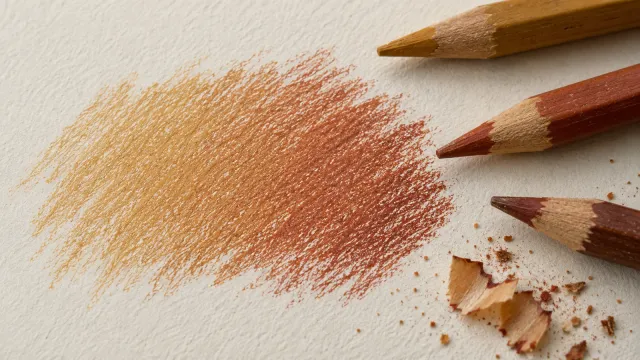
Lay down a pale base, then add depth along one edge. The ideas in blending colored pencils can help, though digital brushes respond differently from real pigment.
Alpha Lock restricts painting to existing pixels on a layer. It can help you texture a filled silhouette, but it won’t keep strokes inside each separate colored region if several regions share that layer. For more control, select the area you want to change or keep shapes on separate layers.
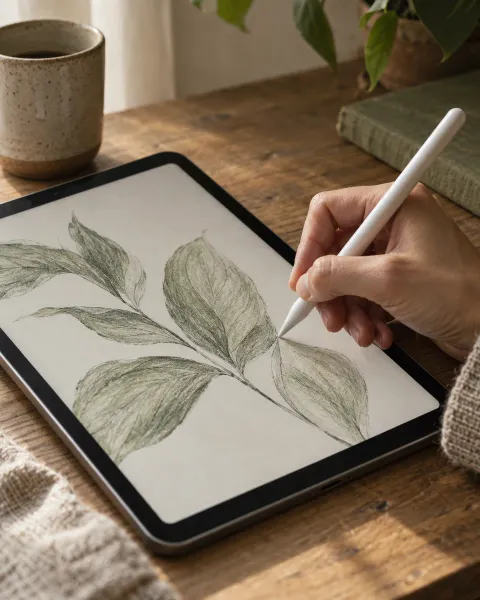
Save a copy you can return to
Keep the layered Procreate file for later changes. Export a PNG for sharing a crisp image, or a PDF if you want to print.
A print may look different from a backlit screen. Make a small proof before adjusting the whole picture.
You can also print the same page and try it with pencils. There is room for both the ease of undo and the feel of paper under your hand.
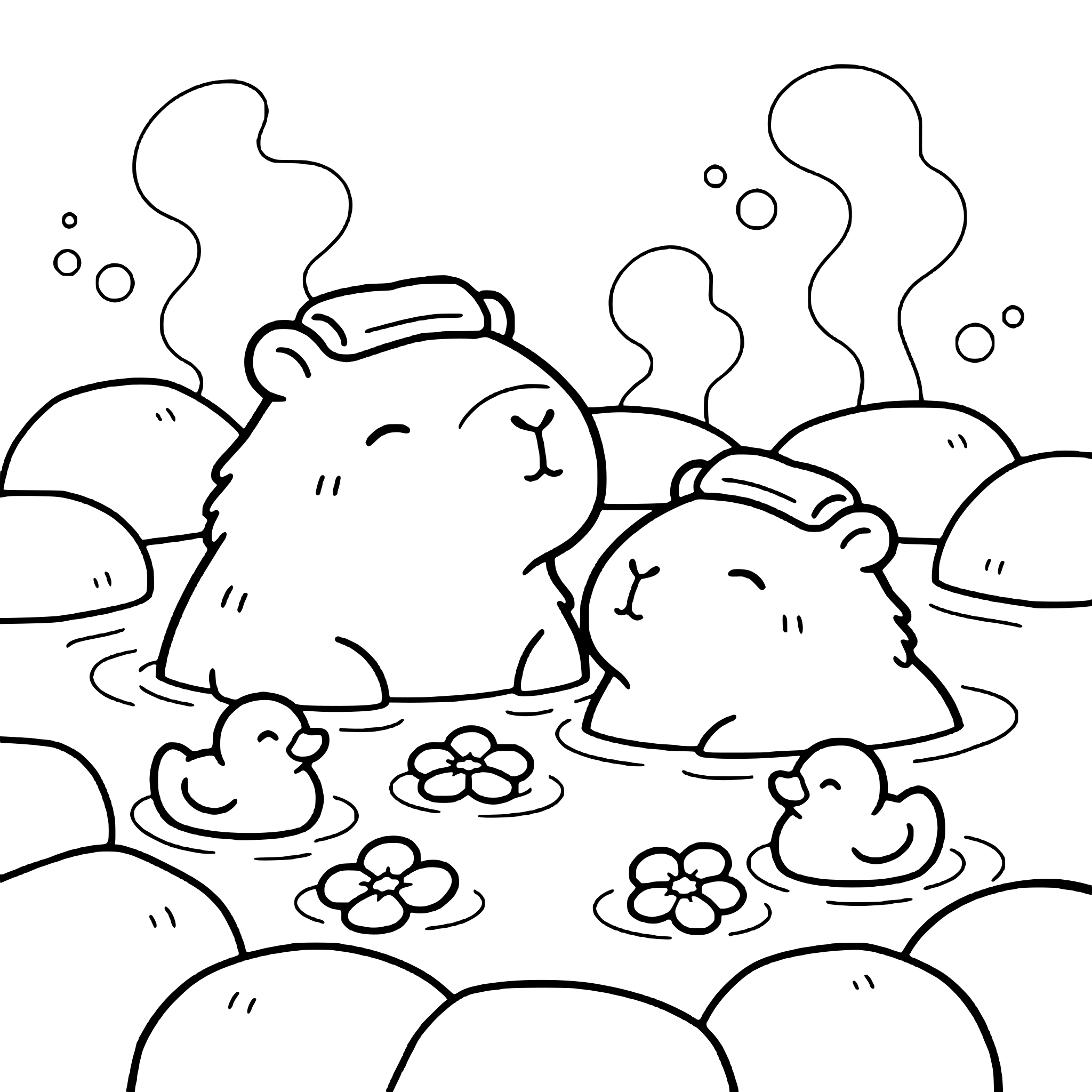 Free coloring pageCapybaras in a hot spring coloring pageDownload PDF or color it in Linea →
Practice on your own drawing
Take a photo of a sketch and Linea turns it into a page you can fill.