Coloring apps without numbers: find your own way to color
Prefer choosing your own colors? Explore Linea, Pigment, Lake, Procreate and Recolor, with a closer look at brushes, fills and creative freedom.
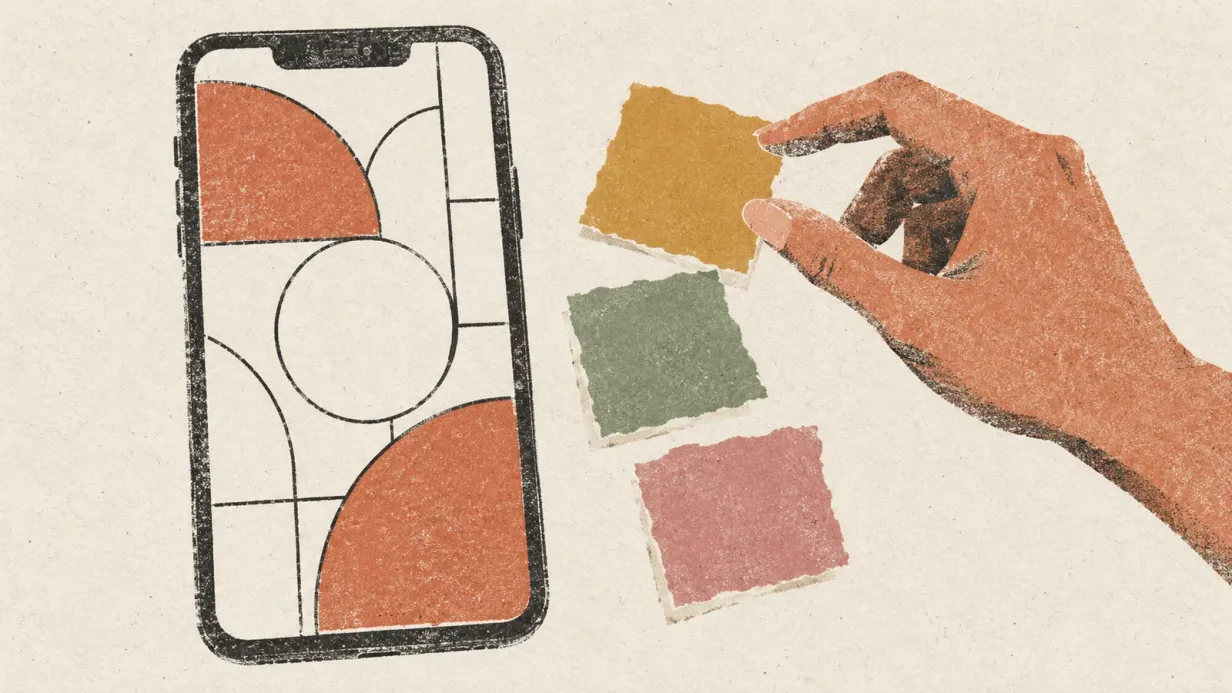
Sometimes you want to choose a shade because it reminds you of a favorite cup, or make a leaf pink simply to see how it looks. A coloring app without numbers leaves those decisions with you.
Some apps offer a ready-drawn page and a paint box. Others give you a canvas to arrange yourself. The useful difference is how you want to spend your time: moving a brush, choosing colors or getting a picture ready to paint.
Choose the kind of mark you enjoy
Color by number gives you a set palette and numbered areas to fill. Its structure can feel restful when you’d rather make fewer decisions.
Tap-to-fill lets you choose the color, then fills a shape in one touch. It suits broad areas and trying out a palette.
Brush coloring lets you move your finger or stylus across the page. Depending on the app and brush, you can build layers or soften a transition between shades.
You may enjoy switching between fills and brushes on the same drawing. Neither needs to be the only way you color.
Five apps with different starting points
We make Linea, so it’s included here from that perspective. The other apps offer their own ways to spend time with color. Features and subscription terms can change; check the current listing for your device before paying.
Linea: a page and a watercolor brush
Linea brings hand-drawn pages and 24 brushes to iPad, iPhone and Android. Its wet watercolor brush picks up and mixes with color already on the page, while the outlines keep strokes inside the shape.
You can use tap-to-fill for an open background, then return with a brush to add depth. On iPad, compatible Apple Pencil controls let your hand influence the mark.
There is space for your own drawings, too. Photograph a sketch and turn it into a page you can revisit with another palette. Built-in and downloaded pages work offline; turning a sketch into a page needs a connection.
Linea is free to start. Pro adds access to every page and collection, premium brushes and palettes, and unlimited sketch imports. The app shows subscription prices for your region before you buy.
Pigment: explore different coloring modes
Pigment offers different ways to work with outlines, including freehand coloring and modes that keep marks within a region. That gives you room to choose how closely you want to guide each stroke.
Its coloring modes guide explains the differences and how imported images may behave. Try a page with the tools you enjoy before deciding whether its setup suits you.
Lake: spend time with an illustrator’s drawing
Lake offers coloring books by independent illustrators on iPhone and iPad. Browsing by artist can be a pleasant place to start when the drawing itself is what draws you in.
Part of its subscription income supports the artists. Look through the available artwork and current access options to find a collection you’d like to return to.
Procreate: bring your own page
Procreate is a painting app for iPad, so you supply the coloring page and arrange its layers yourself. It supports image and PDF imports, giving you a way to work with line art you’ve drawn or downloaded.
It may feel familiar if you already paint there. If you’re new to layers, our iPad coloring guide walks through keeping the outlines above the color.
Recolor: explore palettes and finishes
Recolor’s App Store listing describes a library of coloring pages alongside palettes, gradients and finishing effects. It also offers imports of drawings and photographs.
If choosing a combination of colors is the part you enjoy most, try its approach on a free page. If the movement of a brush matters to you, test the available tools rather than relying on screenshots to judge the feel.
Try one page before choosing
Pick a drawing with a few open shapes. Notice whether you can find a color easily and whether the brush responds comfortably to your hand.
Try changing a shade you’ve already used. Close the app and return to the page. If offline coloring matters to you, check that it works with the pages you’ve saved.
For a first experiment, the capybaras page leaves room for a broad wash and a few small details:
 Free coloring pageCapybaras in a hot spring coloring pageDownload PDF or color it in Linea →
You don’t need to settle on one app forever. Find a page you like and a way of making color that feels good today.
Practice on your own drawing
Take a photo of a sketch and Linea turns it into a page you can fill.